GoogleEarth and More In recent
years GoogleEarth has become a powerful tool and a leading force
in mapping. One can use GoogleEarth to zoom into almost any part
of the earth, and now sky, with enough detail to identify features
as small as individuals. You can also view and add pictures linked
to locations on the globe. You can locate places by placenames,
features or addresses. You can overlay images and features and
build three dimensional features. And more. Open GoogleEarth
by clicking on the Macintosh HD icon on the desktop, then Applications
and then GoogleEarth. Now that you have GoogleEarth open try several
maneuvers:
Click on the earth approximately where Oregon is located
Use the controls in the upper corner of the earth
to zoom in and out of a location (slide bar on right)
to move from east to west and north to south (arrows and
polygon in the middle)
to locate your community and follow a road to a neighboring
community
to change the landscape from "looking straight down"
view to a view as if you're flying a plane (slide bar on the
top)
Select "Fly to" and type in the address of your
home address
Placemark your home address (with the push pin icon)
Find the latitude and longitude of your home (bottom of the
screen: select View, then Status Bar if you don't see it)
Select the measuring tool and measure the distance between
two locations
Find a favorite vacation spot
Draw a line from the 2008 Olympics to Monmouth to measure
the shortest distance (what other state would you find over?)
Assignment Create a 5K race for your
community (or Monmouth area).
Try to think of all aspects of
setting up the race course (i.e. room for spectators, staging
area for runners/bikers/etc., interesting terrain, loop rather
than out and back, etc.). Are there nearby places to stay or camp.
Where will you eat? Open Google Earth
and type in your location. Zoom in for details. Show street names
to virtually find your way around.
Under the Tools menu item, select “Measure”.
Next chose Kilometers as your measurement. The curser on the map will
switch to a small “square”. Position the cursor where
you want to start your measurement. Keep clicking along the path and
watch your mileage grow. (Note: if you make a mistake, Control click
on your last entry to delete it.)
You can zoom in or out as well
as move up and down or sideways by using the navigation tools
at the bottom of the screen while measuring your course.
Zoom in or out to fill the screen
with your racecourse. Decide whether to show streets (if it isn’t
too much information). Save the image
as a .jpg. Title it something that you will remember. Open this image in Photoshop
and add a title, your name and any other info that seems appropriate.
Resize if needed
to print. Save as a .jpg file. Print a copy of
the course to turn in. Attach a Word file giving a brief description
of the location, the course, and any other considerations you
deem appropriate.
You will turn in a printed version
of your map and a Word document.
Due February
12.
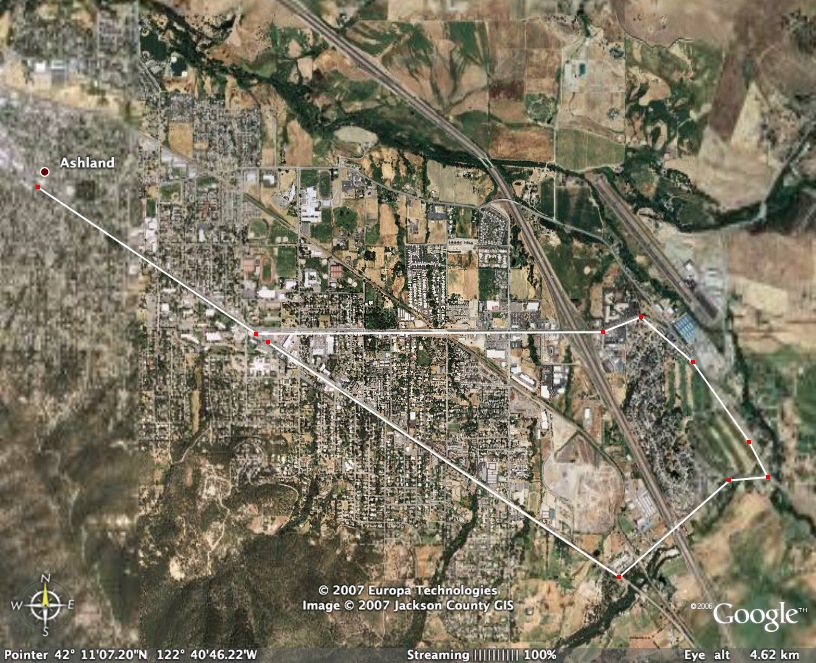
Example:
Office hours: Tuesday mornings: 9:00 - noon
Thursday mornigns: 9:00 - noon
Other times aby appointment
Also contact me through email at saxowsd@wou.edu
or denvygail@saxowsky.com